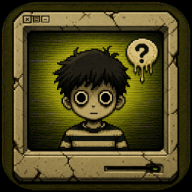
Endacopia Wallpaper Guide: Best Backgrounds and Community Fanart
Discover the best Endacopia wallpaper options for desktop and mobile, featuring Mellow, Painter, Clockey, and amazing community fanart.
If you are captivated by the surreal, nostalgic, and slightly unsettling world of AndyLand's hit indie game, you are not alone. Finding the perfect endacopia wallpaper is a fantastic way to bring the unique, retro-inspired aesthetic of this point-and-click horror adventure to your daily life. Whether you want a high-resolution endacopia wallpaper featuring the main character Mellow or want to showcase the bizarre side characters, the community has generated some incredible options.
This fan-made wiki guide explores the best background concepts, community fanart trends, and customization tips to help you style your desktop or mobile device. From the retro MS Paint art style to the creepy CRT monitor vibes, we will cover how to find, create, and format the ultimate backgrounds for your screens.
The Surreal Aesthetic of Endacopia
The visual style of this game is a massive draw for fans of psychological horror and retro computing. Developed by Andres Guerrero (AndyLand), the game combines the look of early 2000s PC software with surreal, dreamlike horror elements. Players act as a guardian angel guiding a lost boy named Mellow through a world governed by alien rules.
This distinct art style translates beautifully into desktop and mobile backgrounds. The contrast between bright, almost childlike drawings and dark, decaying digital landscapes creates a striking visual tension. The characters themselves—ranging from the cute, red-capped Mellow to the multi-faced computer entity Painter—offer fantastic focal points for any screen.
| Aesthetic Element | Visual Style | Common Color Palettes | Best Suited For |
|---|---|---|---|
| Retro CRT Monitor | Curved screen edges, scanlines, digital glitching | Poison green, pitch black, neon blue | Desktop monitors, lock screens |
| Surreal Void | Infinite flat planes, floating doors, abstract geometry | Deep purple, pastel pink, lavender | Minimalist desktop setups |
| Chalk & MS Paint | Rough brush strokes, hand-drawn character borders | Primary red, sky blue, stark white | Mobile home screens, profile headers |
| Nostalgic Horror | Dark rooms, glowing screens, hidden faces | Charcoal gray, pale yellow, crimson | Lock screens, spooky season themes |
Top Desktop Endacopia Wallpaper Concepts
Setting up a desktop endacopia wallpaper allows you to transform your computer screen into a window looking directly into the game's mysterious universe. Because the game utilizes a retro point-and-click interface, your desktop icons can easily blend with the wallpaper to look like a haunted operating system.
One popular concept among players is the "Computer Love" theme, which features Painter and Tip. Painter is an old-fashioned computer monitor displaying multiple faces, acting as a guide and puzzle-giver in the game. Setting this as your background makes it feel like Painter is living inside your actual monitor.
Another excellent choice is the purple void. This is the abstract space where Mellow spends much of his time navigating nonlinear puzzles and confronting boss fights like the Clock Boss or the Trapezist. A high-resolution capture of this purple landscape provides a clean, dark-mode-friendly background that won't strain your eyes during late-night gaming sessions.
| Wallpaper Concept | Featured Characters | Recommended Resolution | Visual Style |
|---|---|---|---|
| The Purple Void | Mellow (standing in the center) | 1920x1080 / 2560x1440 | Minimalist, spacious, dark-mode |
| Painter's Interface | Painter, Tip, Sebastian | 1920x1080 | Retro PC, cluttered, interactive |
| The Clock Tower | Clockey, Clock Boss | 2560x1440 | Industrial, tense, symmetrical |
| Surgeon's Laboratory | The Surgeon, robot helpers | 1920x1080 | Clinical, green-hued, eerie |
| The Endless Hallway | Mellow, shadow entities | 3840x2160 (4K) | Atmospheric, high-contrast, creepy |
Finding and Customizing Mobile Endacopia Wallpapers
Crafting a mobile endacopia wallpaper requires a vertical orientation that keeps the focus on the game's characters without cluttering your phone's app icons. The mobile layout is perfect for showcasing single-character portraits or vertical slices of the game's surreal environments.
For a cute yet eerie phone background, many players opt for Mellow holding his signature pink umbrella against a dreary, gray background. This image perfectly captures the vulnerability of the protagonist as he wanders through a hostile world. Alternatively, you can use a close-up of Clockey, the wall-mounted clock character, to serve as a literal clock background behind your phone's digital time display.
If you are capturing screenshots directly from the game, you can run the title on your PC and use a cropping tool to isolate vertical segments. Let's look at some popular mobile dimensions and how to frame your favorite scenes.
| Mobile Concept | Target Aspect Ratio | Primary Color Focus | Suggested Screen |
|---|---|---|---|
| Mellow & Umbrella | 9:16 (1080x1920) | Soft pink, pastel gray, bright red | Home Screen (low distraction) |
| Clockey's Face | 9:19.5 (1125x2436) | Warm wood, brass, off-white | Lock Screen (aligns with clock) |
| The Surgeon's Spheres | 9:16 (1440x2560) | Neon green, crimson red, metallic | Lock Screen (high contrast) |
| Endacopia Bride | 9:19.5 (1290x2796) | Pale blue, white, deep violet | Home Screen (surreal art style) |
Community Fanart and Creator Spotlights
The community surrounding AndyLand's creations is incredibly active, regularly sharing their custom endacopia wallpaper designs and fanart on platforms like Pinterest, Tumblr, and Twitter. Fan artists love to experiment with the game's characters, blending the official art style with their own unique interpretations.
Some of the most popular community art trends include crossover drawings. For example, artists frequently depict Mellow interacting with characters from other surreal indie projects, such as Bugbo (specifically Gradient Joe) or Item Asylum. Other popular pieces highlight the relationship between Mellow, Sebastian, and the computer duo Painter and Tip.
When sourcing community fanart for your background, it is vital to respect the original creators. Many artists include "Do Not Repost" warnings on their profiles. While using their art as a personal, private phone background is generally accepted, you should never re-upload their work to public wallpaper sites without explicit permission.
| Fanart Theme | Key Characters | Artistic Style | Community Platform |
|---|---|---|---|
| Cozy Room Dreams | Mellow, Teddy Bear | Soft watercolors, pastel tones | |
| Retro Glitch Art | Painter, Tip, Sebastian | High-contrast pixel art, CRT filters | Twitter / X |
| Crossover Memes | Mellow, Gradient Joe, Jax | Cartoon line art, humorous | Tumblr |
| Boss Battle Showdowns | Mellow, Clock Boss, Surgeon | Dynamic action poses, dark lighting | DeviantArt |
How to Create Your Own Custom Endacopia Wallpaper
If you want a truly unique background, creating your own personalized endacopia wallpaper is the best way to go. By combining in-game assets, official promotional materials, and simple image editing tools, you can build a custom layout tailored to your specific screen resolution.
To start, you can grab high-quality screenshots directly from the official Endacopia Steam page or by playing through the Endacopia itch.io demo. Once you have captured your favorite scenes, follow these steps to format them:
- Import the Image: Load your screenshot into a free image editor like Canva, Photopea, or GIMP.
- Set the Canvas Size: Match your monitor's native resolution (e.g., 1920x1080 for standard HD or 2560x1440 for QHD).
- Apply a CRT Filter: To preserve the game's retro aesthetic, add a subtle scanline overlay or a slight chromatic aberration effect.
- Adjust Color Balance: Boost the saturation of the purples and reds to make characters like Mellow stand out against dark backgrounds.
- Add a Vignette: Darken the edges of the image to draw focus to the center and make your desktop icons easier to read.
Using these steps, you can easily convert any memorable moment from the game—whether it is a tense encounter with the Surgeon or a quiet moment in Mellow's room—into a stunning background.
| Image Editing Tool | Supported Platforms | Key Feature for Wallpapers | Price |
|---|---|---|---|
| Photopea | Web Browser | Excellent PSD support, easy filtering | Free (Ad-supported) |
| GIMP | Windows, macOS, Linux | Advanced color grading, custom brushes | Free (Open-source) |
| Canva | Web, Mobile | Simple templates, easy resizing | Free / Premium |
| Pixlr | Web, Mobile | Quick AI-generation and overlay effects | Free / Premium |
Frequently Asked Questions
Where can I find an official endacopia wallpaper?
While AndyLand has not released an official standalone wallpaper pack, fans can find high-quality promotional art on the game's official Steam store page and itch.io developer profiles. These promotional graphics make excellent desktop backgrounds. Additionally, checking AndyLand's official social media channels often yields high-resolution illustrations suitable for screens.
Can I use fanart as my personal endacopia wallpaper?
Yes, using community fanart as your personal, private desktop or phone background is generally allowed and appreciated by artists. However, you should never upload these artworks to public wallpaper sharing websites, use them for commercial purposes, or repost them on social media without the artist's permission and proper credit.
What is the best resolution for a desktop endacopia wallpaper?
The best resolution depends entirely on your monitor, but the standard standard is 1920x1080 (Full HD) or 2560x1440 (Quad HD). Because the game uses a retro pixel art style, scaling the image up can sometimes cause blurriness. To avoid this, use a "nearest neighbor" scaling algorithm in your image editor to keep the pixel edges crisp and clean.
Are there animated wallpapers available for Steam Wallpaper Engine?
Yes, the Steam Workshop community for Wallpaper Engine features several animated backgrounds. These often include moving scanlines, blinking lights on Painter's monitor, or Mellow gently swaying in the purple void. Simply search for the game's title in the Wallpaper Engine application to browse user-submitted animations.
Related Guides
Endacopia Andyland: The Comprehensive Community Guide to Mellow’s Surreal Adventure
Explore the surreal world of Endacopia by Andyland. Master puzzles, survive horrors, and guide Mellow in this point-and-click indie masterpiece.
Endacopia Reddit Discussions: Everything You Need to Know About the Surreal Indie Horror Hit
Dive into the surreal world of Endacopia. Explore community discussions, gameplay mechanics, and why this indie horror title is capturing player imaginations.
Endacopia TikTok Trends: Exploring the Viral Surge of Andyland’s Surreal Horror Game
Discover why Endacopia is trending on TikTok. Explore viral clips, community reactions, and gameplay tips for Andyland's surreal horror adventure.
Exploring the Surreal World of Endacopia Art: A Fan Guide to Mellow’s Universe
Dive into the unique Endacopia art style. Learn how AndyLand blends 90s nostalgia with psychological horror in this surreal point-and-click adventure.